Entering Narratives (Blue Book Questions) |
Revised: 07/19/2024 |
The governor's operating biennial executive budget is introduced to the General Assembly in the Budget Book, or “Blue Book.” The Blue Book contains budget information for the state overall, including: an economic forecast, discussion on revenue and expenses, debt financing, and individual agency information and funding recommendations.
The agency section of the Blue Book provides detailed information for each state agency, including Role and Overview, Goals and Objectives, and Agency Highlights. Professional Licensing Boards and Commissions only need populate the Role and Overview within the Blue Book Questions. Agencies enter their information and data using the Blue Book Questions icon within the Operating Budget tile.
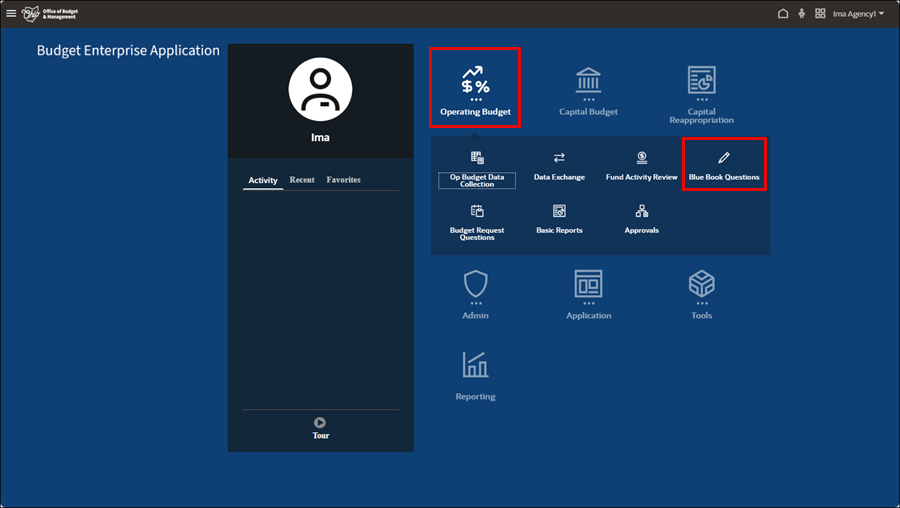
- Select the Operating Budget tile.
- Select the Blue Book Questions icon.
- The 143.N.Role & Overview form displays.
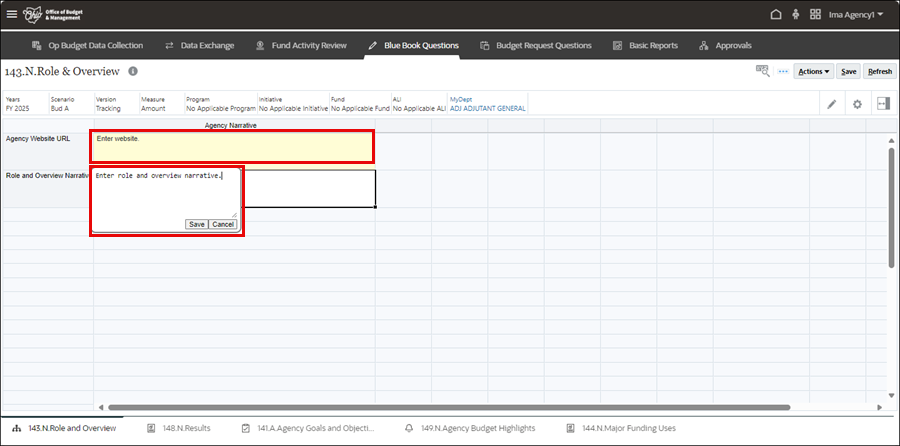
- Enter the Agency Website URL into the field and click Save in the text box.
- Verify the address is correct. The application does not verify this is a valid URL.
- Enter the agency Role and Overview Narrative into the field and click Save in the text box.
- The Role and Overview Narrative field may be prepopulated with data from the previous biennium's Blue Book. If this is the case, carefully proofread and update all information.
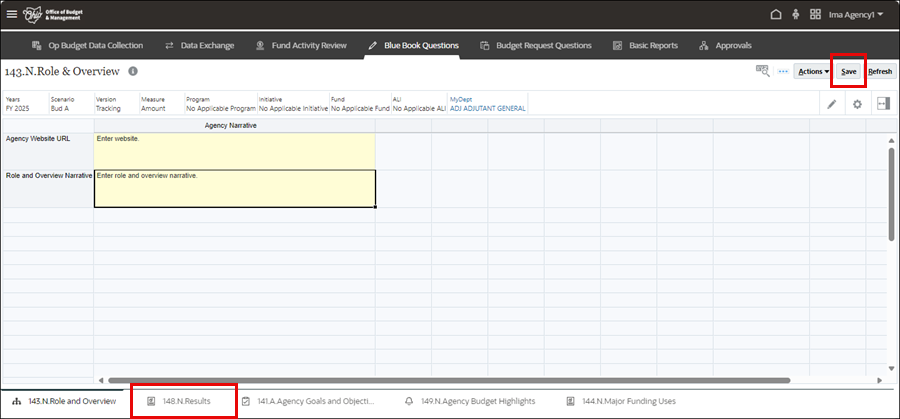
- Click Save in the top-right corner when complete.
- Select the 148.N.Results tab along the bottom.
- The 148.N.Results page displays.
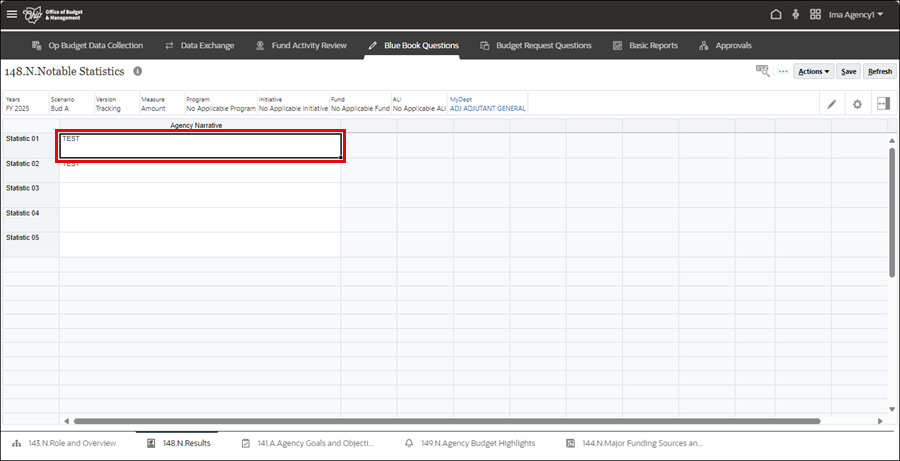
- Click in the Agency Narrative field to open the text box.
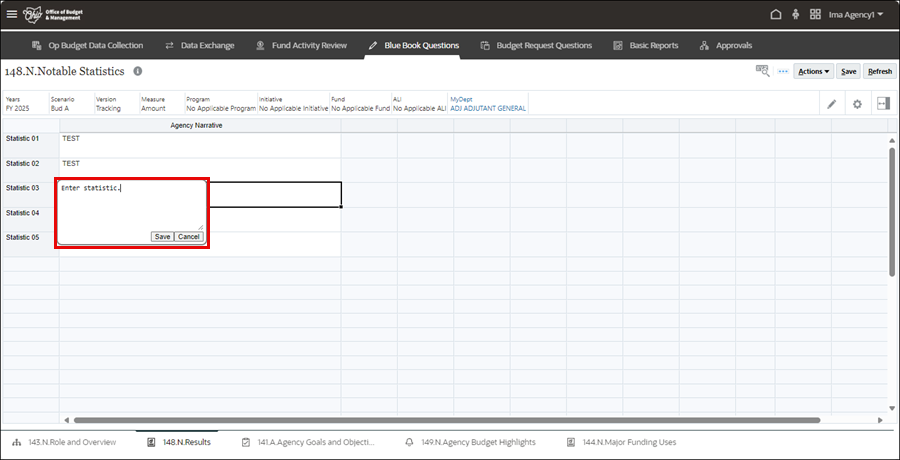
- Enter up to five (5) Statistics, which are informative statistics that demonstrate recently achieved results.
- Click Save in the text box.
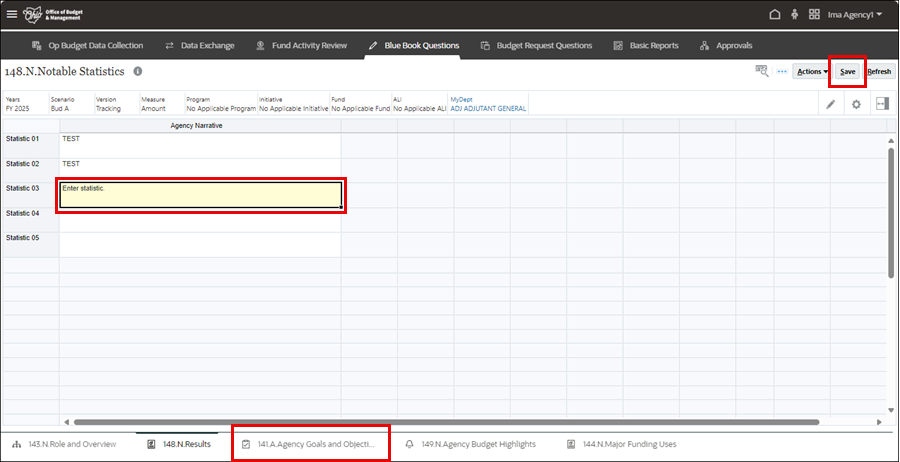
- Note that the field turns yellow.
- Click Save in the top-right corner, when complete.
- Select the 141.A.Agency Goals and Objectives tab along the bottom.
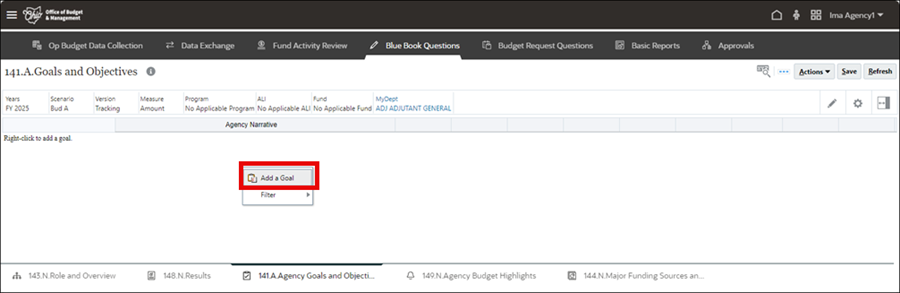
- Right-click in the white space of the table for the menu.
- Select Add a Goal.
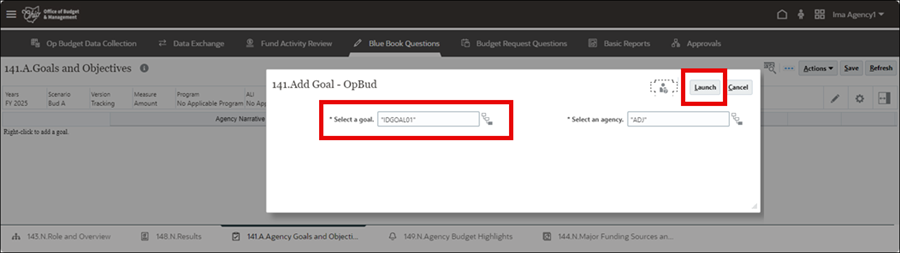
- Click Launch.
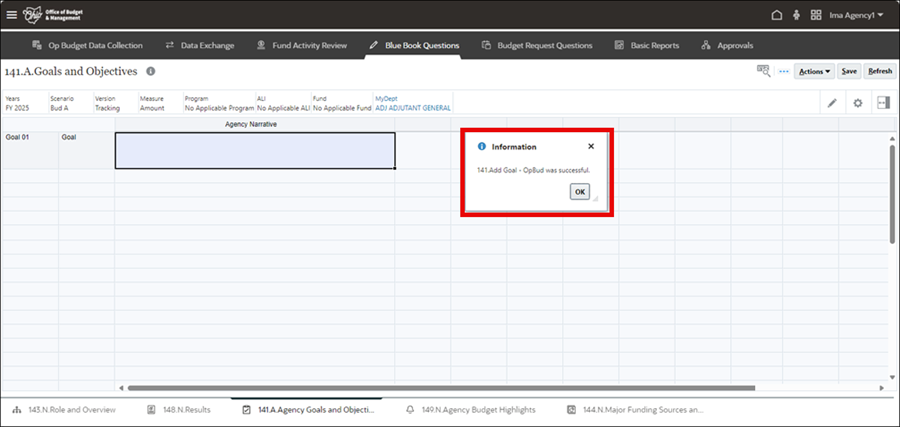
- Click OK on the Information pop-up.
- For each additional goal, add a number sequentially to the Select a goal value.
- Add up to five goals.
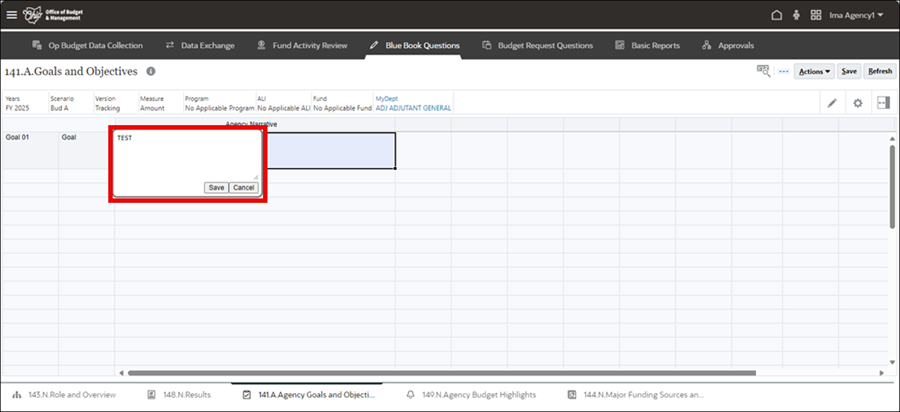
- Enter a goal into the Agency Narrative column.
- Click Save in the text box.

- Note that the field turns yellow.
- Click Save in the top-right corner, when complete.
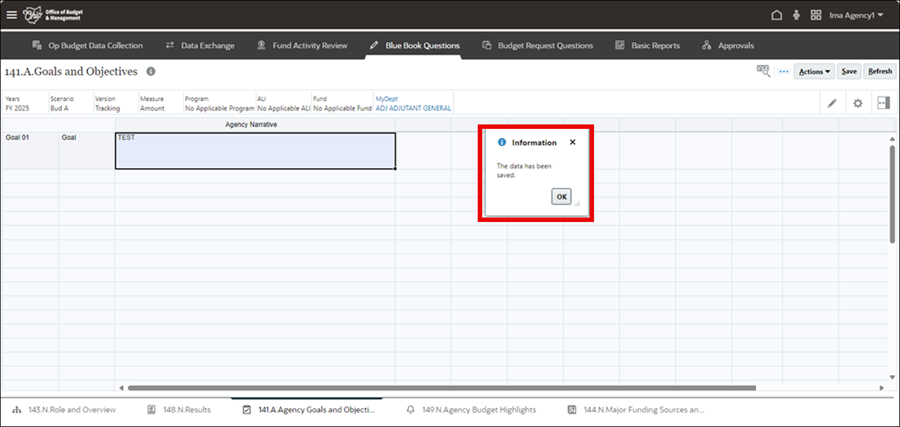
- Click OK on the Information pop-up.
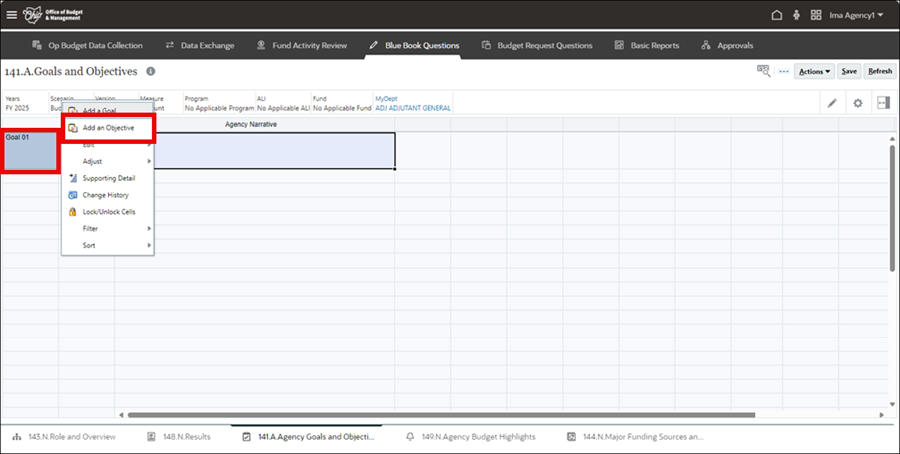
- Right-click on the Goal for the menu.
- Select Add an Objective to add an objective to the goal.
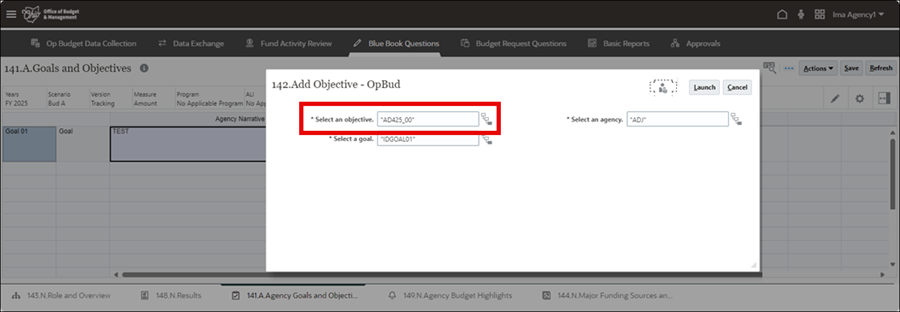
- In the Select an objective field, if the value ends with "00", change it to "01".
- Adding objectives requires you to change the number in the Select an Objective field sequentially.
- Add the new objective under the Select a goal field.
- Each goal should have between one and three objectives.
- Click the Select a Member icon to the right of the field.
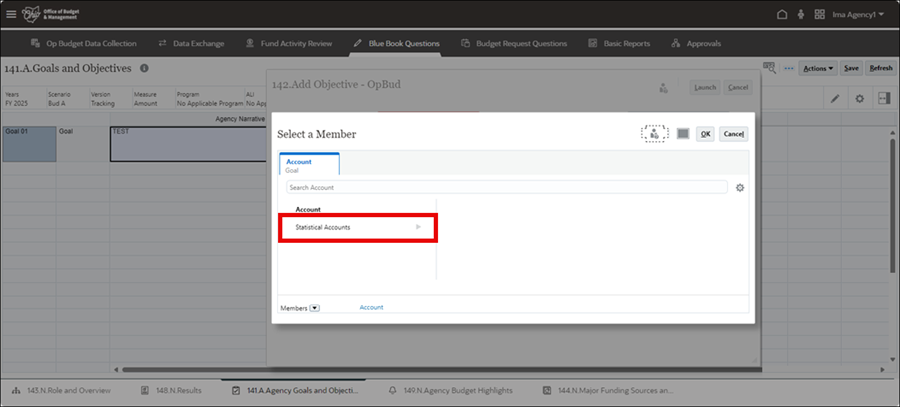
- Click the right-arrow to open Statistical Accounts.
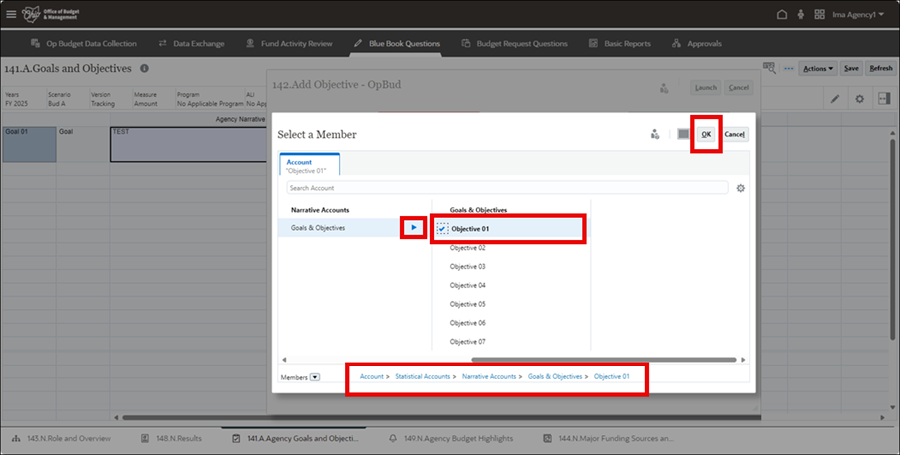
- Click the right-arrow to open Narrative Accounts.
- Click the right-arrow to open Goals and Objectives.
- Click the check mark next to Objective 01.
- Note that the check mark will be in bold.
- Click OK in the top-right.
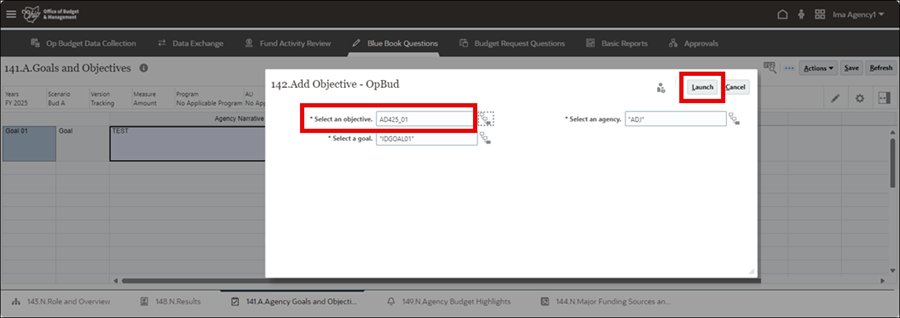
- Confirm objective sequence.
- Click Launch.
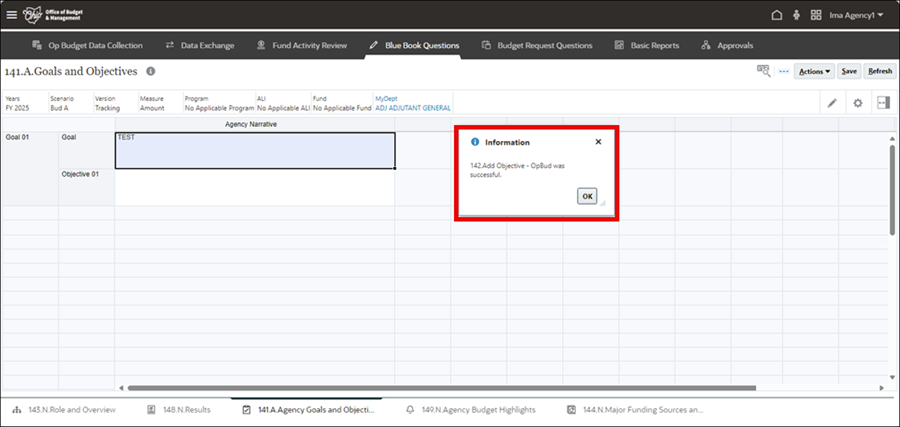
- Click OK in the Information pop-up box.
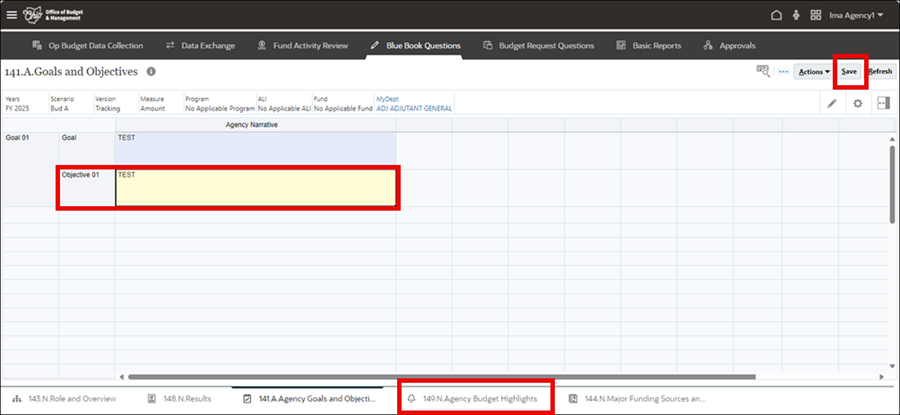
- Enter a narrative for the objective.
- Click Save in the text box.
- Click Save in the top-right corner.
- Click OK on the Information pop-up.
- Click on 149.N.Agency Budget Highlights tab along the bottom.
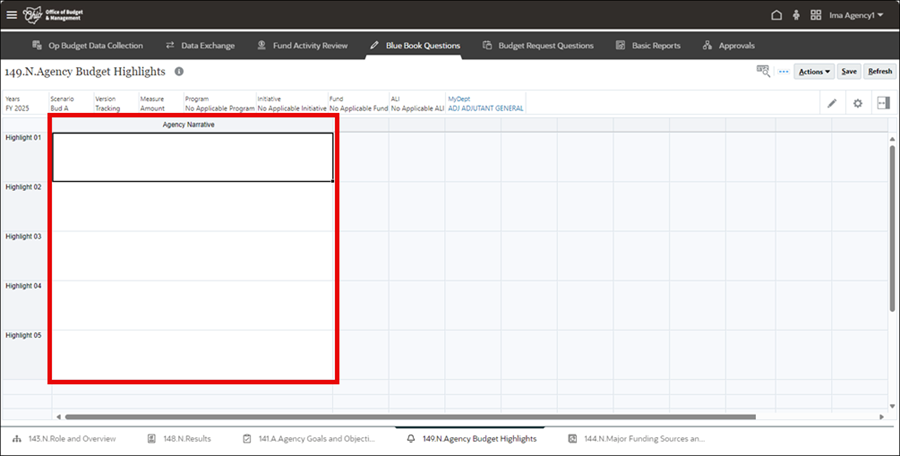
- Enter between three and five Agency Budget Highlights into the Agency Narrative column.
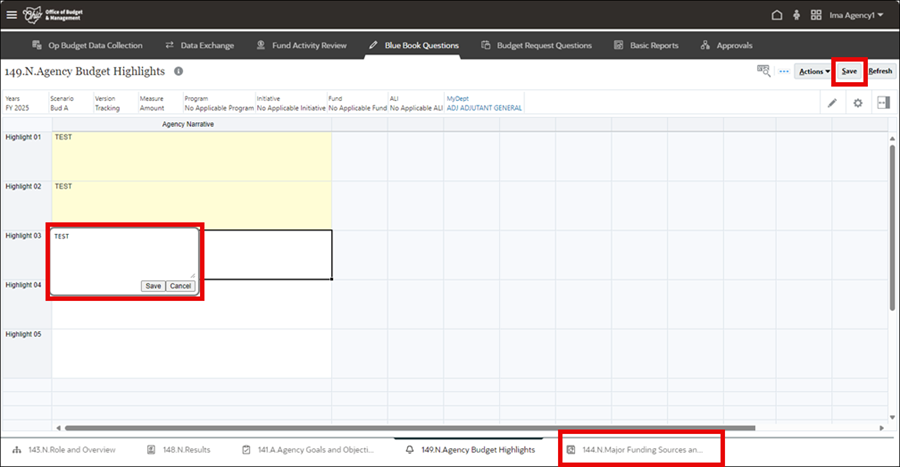
- Click Save in the text box.
- Click Save in the top-right corner.
- Click OK on the Information pop-up.
- Click on 144.N.Major Funding Sources and Uses tab along the bottom.
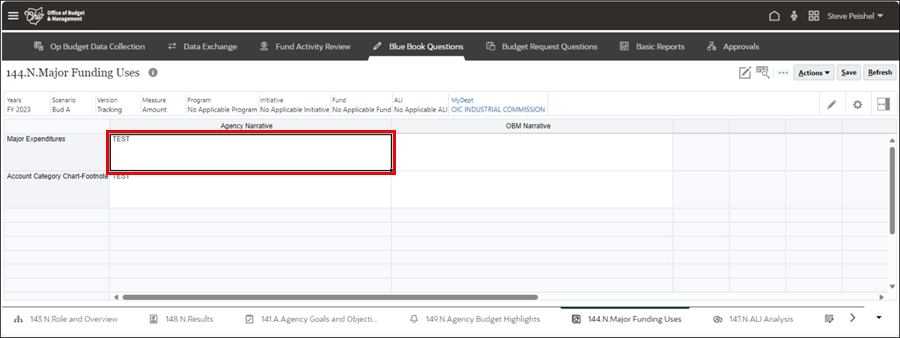
- Enter narrative data for the Major Expenditures row.
- Click Save in the text box.
- Click Save in the top-right corner.
- Click OK for the Information pop-up box.