Revised: 02/16/2021
Approving an ISTV Voucher
Overview
When the selling (billing) agency creates a pending item (receivable) using a speedchart and the correct AP origin code a voucher is automatically created and routed to the buying agency for approval.
Incorrectly Routed Vouchers
Vouchers sent to the appropriate Business Unit cannot be built using an origin that does not belong to the same Business Unit. If the wrong AP origin code was used to route the voucher for approval, the buying agency will seek authorization from the approver with the authority to approve the voucher. They should not deny the voucher. The buying agency will need to obtain an email from the appropriate approver stating the okay to pay. This email will need to be attached via the Attachments link on the Approval page. The buying agency should reach out to the selling agency to ensure the records are updated to reflect the correct origin code for all future vouchers.
Viewing the Worklist
- MyOhio.gov > MY WORKSPACE > Financials Globe > Worklist
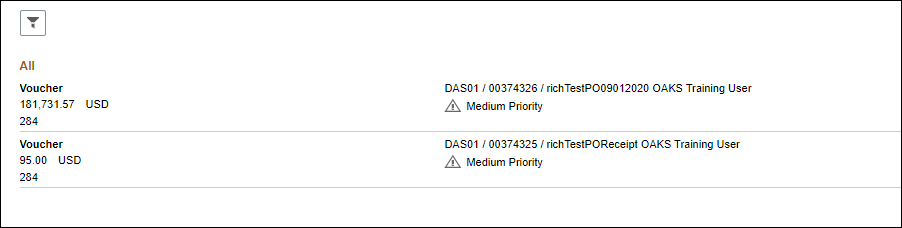
- OAKS FIN automatically displays all the transactions that require approval on the Worklist page based on your origin code.
- The Worklist link structure is as follows: Voucher Origin, Business Unit, Voucher ID, Supplier Name, Invoice Number, Voucher Gross Amount, and Worklist Sequence Number.
- Click the
Voucher
link.
- The Voucher Review Page displays.
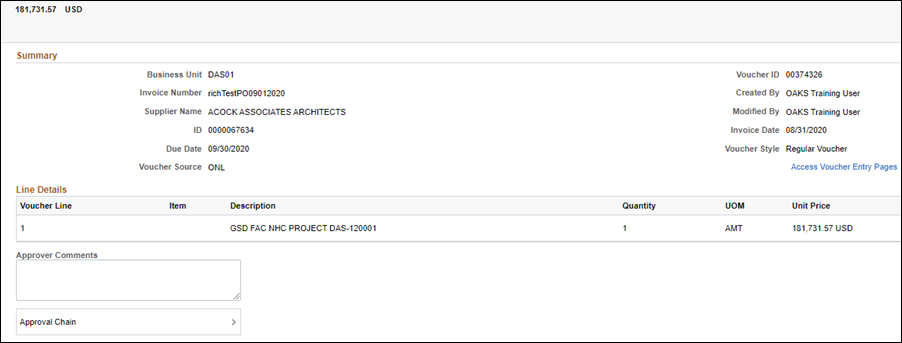
- Click
New Window.
- myOhio.gov > MY WORKSPACE > Financials Globe > Accounts Receivable Tile > View ISTVs
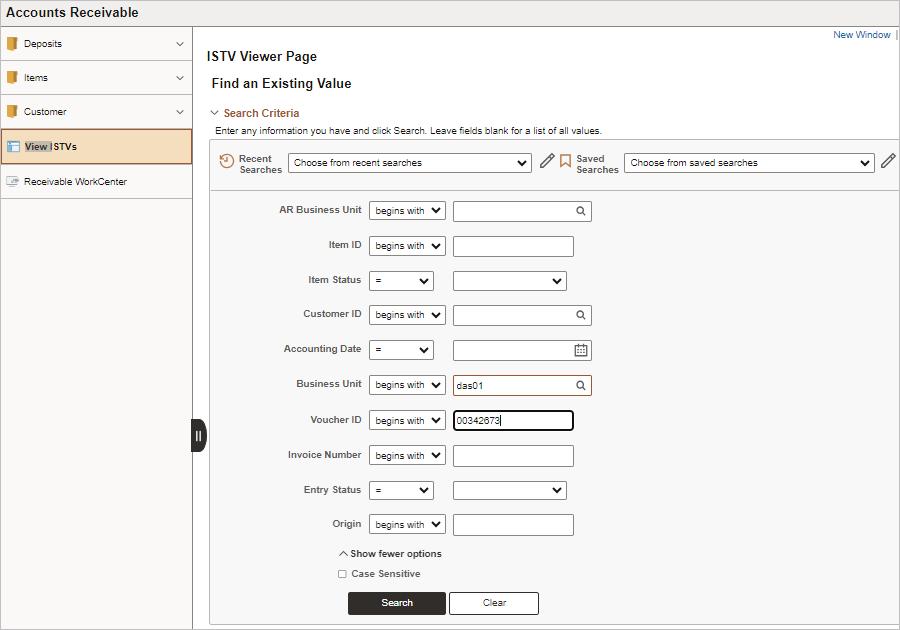
- Enter agency business unit in the
AP Business Unit
field.
- Enter voucher id in the
Voucher ID
field.
- Click
Search.
- The AR tab for the ISTV will display.
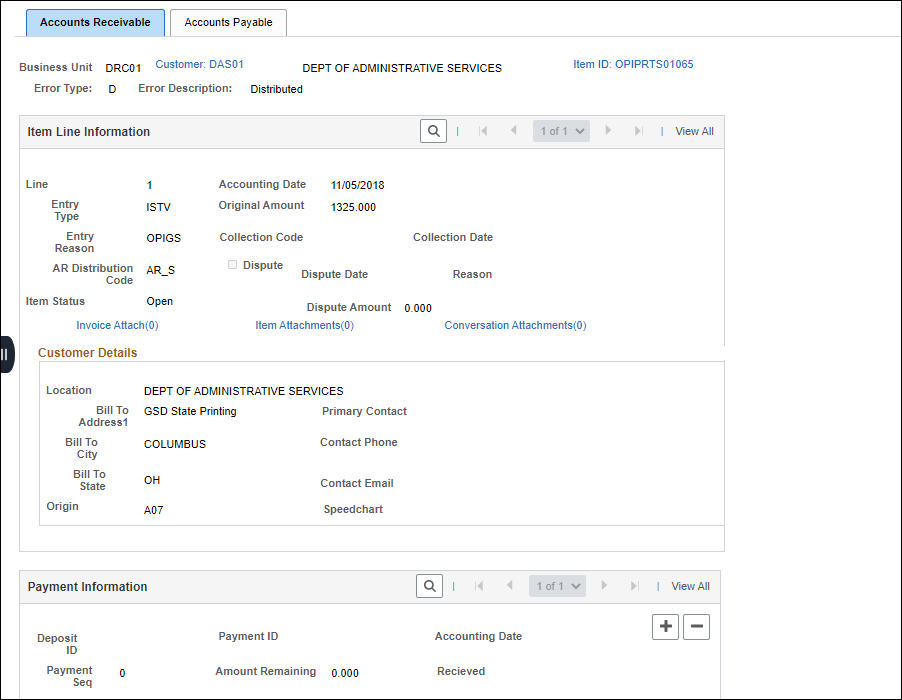
- Select the
Item Attachments
link to view the invoice.
- Click
New Window.
-
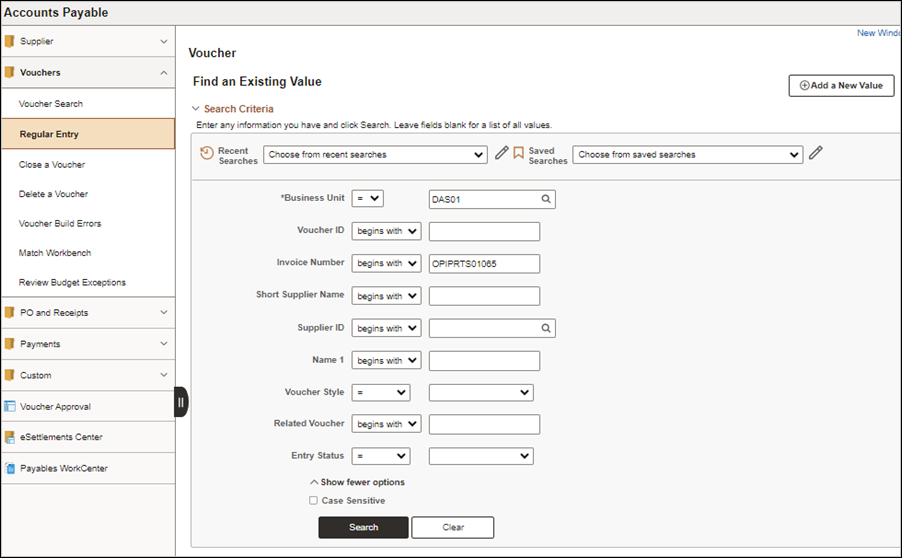
myOhio.gov > MY WORKSPACE > Financials Globe > Accounts Payable Tile > Vouchers menu > Regular Entry
- Select the
Find an Existing Value
Tab.
- Enter the
Invoice Number
.
- Click
Search.

- Select the
Invoice Information
tab.
- Review
Last Receipt Date,
Pay Terms
(Due Now), and Invoice
Total
to ensure accuracy.
- Review
Chartfields
on distribution lines and/or PO’s to ensure accuracy.
- If Invoice was not attached on the ISTV Viewer Page, click the
Attachments
link on the Regular Entry page to view invoice.
- Review
Comments
link to verify if any comments were entered.
- Return to the Approval Worklist screen.
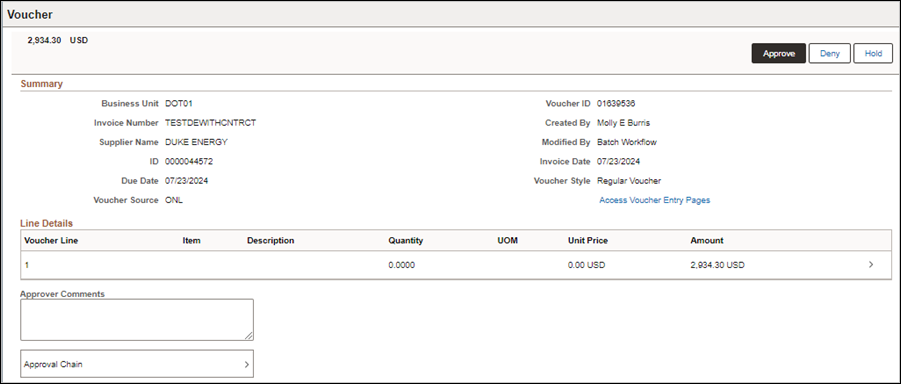
- Select
Approve or Deny.
- Denying a voucher requires a reason to be entered into the
Add Comments
field located directly below the Approval Information field area.
- ISTV Vouchers can be denied, but if they are, notification will not be sent through the workflow. Therefore, if an ISTV voucher is denied, it is critical to notify the selling agency via email or ensure that there's a process in place for them to be identified.
- The Agency Voucher Processor will click on the
Approval History
to review denied comments and save the comments to perform the corrective action.
- Approving a voucher does not require a comment.
