
Revised:10/07/2024
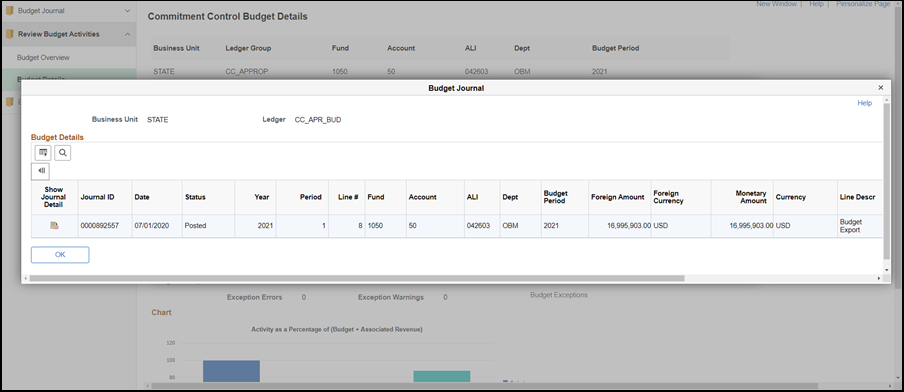
This topic provides guidance for inquiring on Commitment Control ledger balances by reviewing the Budgets Overview and Budget Detail Inquiry screens.
Sections in this topic
If previously created, Run Control can be accessed and edited.

Enter a definitive name in the Inquiry Name field.
In the Inquiry Name field, use the underscore character instead of spaces.
Use the Find an Existing Value tab for future searches with the saved named inquiry.
The Budget Inquiry Criteria page displays.
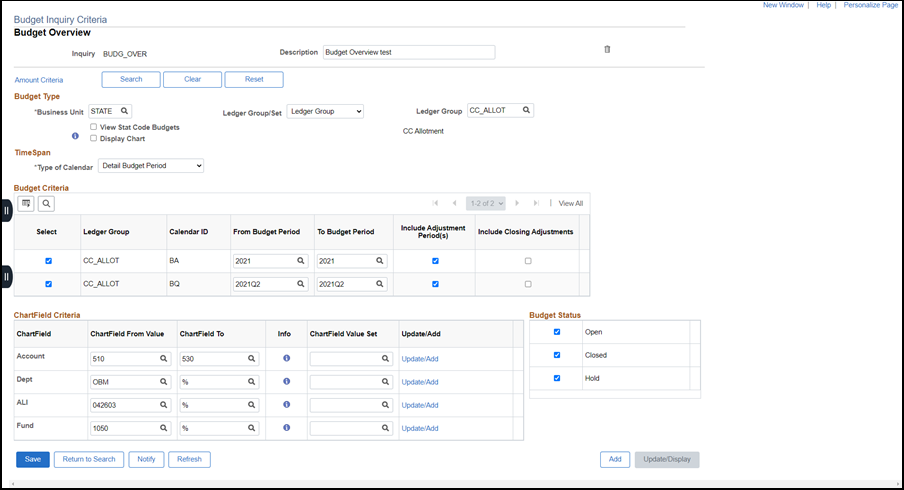
Accounting Period 1 – 12 signify the months in the fiscal year, 1 represents July.
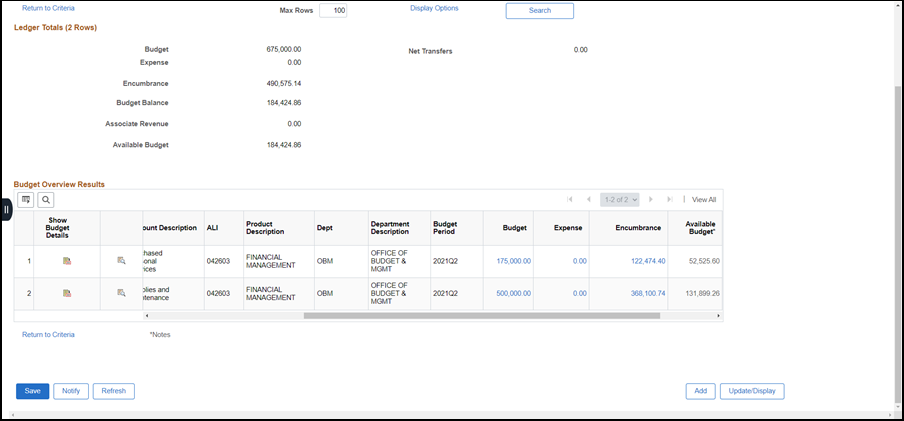


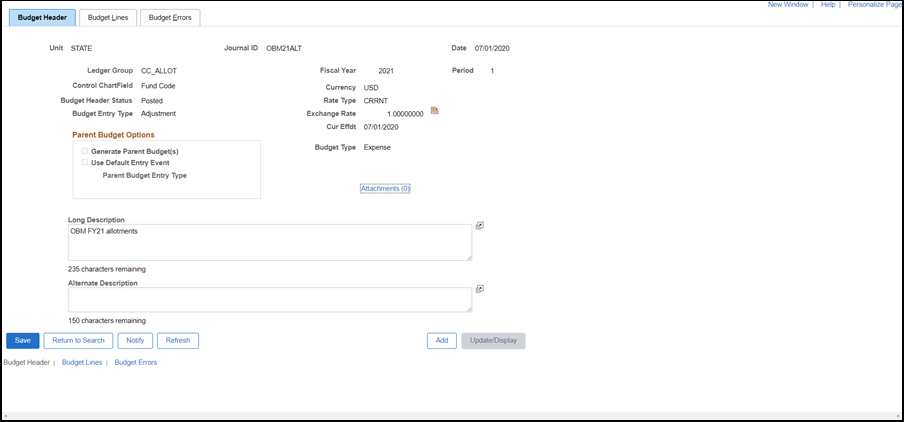
Users enter the Business Unit (STATE) and Ledger Group, and the system will launch a page that only contains the relevant ChartFields that pertain to that budget type. This simplifies the search process for budget details.
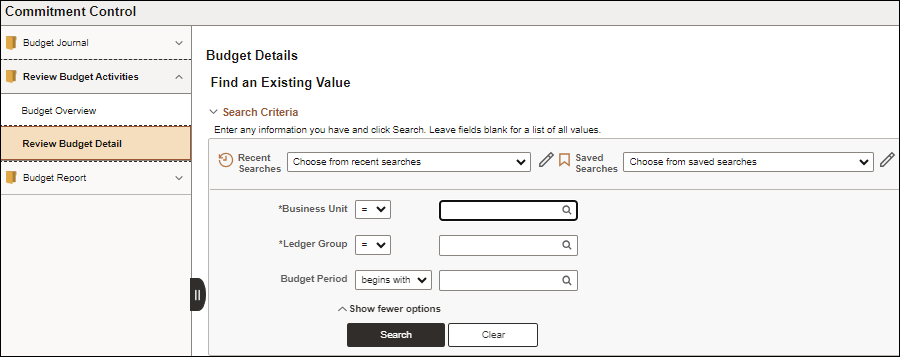


A Forecasts link will be available if the ledger has a current budget period associated with it. The Forecasts link will be available for specific Ledger Groups:



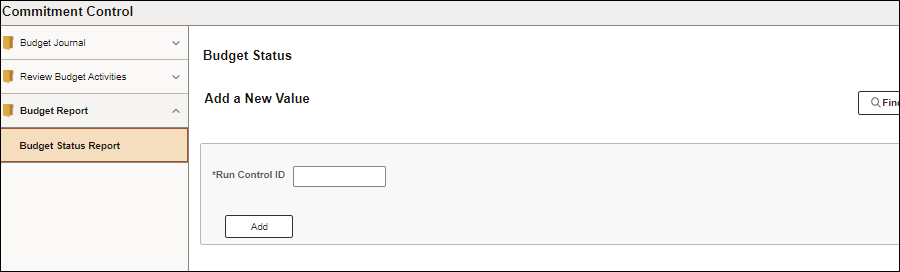
Enter a name in the Run Control ID field.
Report Request Parameters and ChartField Selection areas displays.

Enter "STATE" as the Unit.
Enter the Ledger Group.
Enter the Value(s) beside the ChartField Name(s) to include (refer to the table below).
Mark the check boxes to include the ChartField and/or Subtotal by ChartField.
Update the Sequence in which they will appear on the report.
Click Run

Click OK.

Click the Process Monitor link.
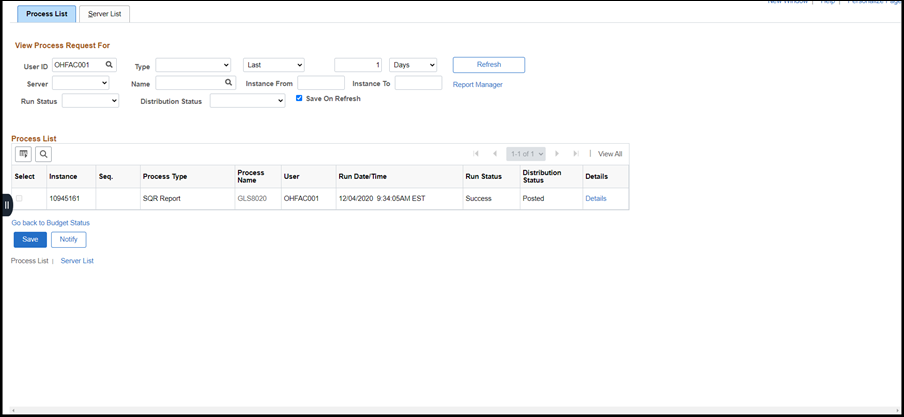
Click Refresh until the Run Status says "Success" and the Distribution Status says "Posted."
Click the Details link.

Click View Log/Trace.
Click the PDF file link. (PDF was the distribution format applied).

The GLS8020 is a Commitment Control report that provides agencies with expense, revenue or cash budgeting data. When the report is run ad-hoc, the data is reported in real time. The budget status report displays all commitment control ledger amounts – budgeted, encumbered, expended and collected and recognized revenue – and the remaining balance for the budget ledger group selected.
This report can be run ad-hoc with the appropriate security role tied to creating and processing budget journals. The data displayed is dependent on the ledger group selected.
This report should not be used to reconcile data from the general ledger since there are timing differences between posting to commitment control and the general ledger. Ledger and journal reports can reflect different accounting periods for transactions that may otherwise be “linked” (such as when a relieved encumbrance reflects a different period than that of its related voucher processing).
Additionally, different ledgers get updated at different and various times during the day and for different amounts. Because of these differences, you will not be able to reconcile CC Ledger reports to Actuals ledger reports.
Use the following matrix to determine which ChartFields are required.
| Ledger Group | Required ChartFields | Values Required | Value Format |
| CC_APPROP |
Fund ALI Department Account Budget Period |
Department Account |
Deptid: three-letter acronym (e.g., AGO, DAS, RSC) Account: 50 |
| CC_ALLOT |
Fund ALI Department Account Budget Period |
Department Account |
Deptid: three-letter acronym (e.g., AGO, DAS, RSC) Account: 500, 550, 595 |
| CC_AGY_CTL |
Fund ALI Department Account Budget Period |
Department Account |
Deptid: Full nine-character dept value Account: 500, 550, 595 |
| CC_AGY_TRK |
Fund ALI Department Account Budget Period |
Department Account |
Deptid: Full nine-character dept value Account: 500, 550, 595 |
| CC_DETAIL |
Fund ALI Department Account Budget Period |
Department Account |
Deptid: Full nine-character dept value Budget Period: 2016, 2017, 2018 |
| CC_CASH | Fund | Fund | Fund 3A40, 5060, Q054 |
| CC_AGY_REV |
Fund Department Account Budget Period |
Budget Period |
Deptid Deptid: three-letter acronym (e.g., AGE, DNR, EPA) Budget Period: 2017M01, 2017M02, 2017M12 |
| CC_STA_REV |
Fund Account Budget Period |
Budget Period | Budget Period: 2017M01, 2017M04, 2017M12 |
The rule set the agency chooses for the fiscal year determines the ChartFields required and the format that must be used. To review the rulesets, see the OBM Forms page under “FIN Agency Budgets."
